
CSS font properties define the font family, boldness, size, and the style of a text.
Difference Between Serif and Sans-serif Fonts
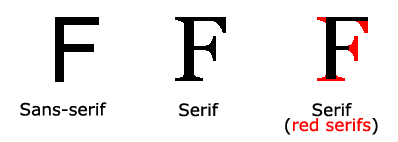
 On computer screens, sans-serif fonts are considered easier to read than serif fonts.
CSS Font Families
In CSS, there are two types of font family names:
- generic family - a group of font families with a similar look (like "Serif" or "Monospace")
- font family - a specific font family (like "Times New Roman" or "Arial")
| Generic family | Font family | Description |
|---|---|---|
| Serif | Times New Roman Georgia | Serif fonts have small lines at the ends on some characters |
| Sans-serif | Arial Verdana | "Sans" means without - these fonts do not have the lines at the ends of characters |
| Monospace | Courier New Lucida Console | All monospace characters have the same width |
Font Family
The font family of a text is set with the font-family property.
The font-family property should hold several font names as a "fallback" system. If the browser does not support the first font, it tries the next font.
Start with the font you want, and end with a generic family, to let the browser pick a similar font in the generic family, if no other fonts are available.
Note: If the name of a font family is more than one word, it must be in quotation marks, like font-family: "Times New Roman".
More than one font family is specified in a comma-separated list:
Example
<html>
<head>
<style type="text/css">
p.serif{font-family:"Times New Roman",Times,serif;}
p.sansserif{font-family:Arial,Helvetica,sans-serif;}
</style>
</head>
<body>
<h1>CSS font-family</h1>
<p class="serif">This is a paragraph, shown in the Times New Roman font.</p>
<p class="sansserif">This is a paragraph, shown in the Arial font.</p>
</body>
</html>
Try it yourself in Notepad or Dreamweaver by coping and pasting the code above.
For more commonly used font combinations, look at our Web Safe Font Combinations.
Font Style
The font-style property is mostly used to specify italic text.
This property has three values:
- normal - The text is shown normally
- italic - The text is shown in italics
- oblique - The text is "leaning" (oblique is very similar to italic, but less supported)
Example
<html>
<head>
<style type="text/css">
p.normal {font-style:normal;}
p.italic {font-style:italic;}
p.oblique {font-style:oblique;}
</style>
</head>
<body>
<p class="normal">This is a paragraph, normal.</p>
<p class="italic">This is a paragraph, italic.</p>
<p class="oblique">This is a paragraph, oblique.</p>
</body>
</html>
Try it yourself in Notepad or Dreamweaver by coping and pasting the code above.
Font Size
The font-size property sets the size of the text.
Being able to manage the text size is important in web design. However, you should not use font size adjustments to make paragraphs look like headings, or headings look like paragraphs.
Always use the proper HTML tags, like <h1> - <h6> for headings and <p> for paragraphs.
The font-size value can be an absolute, or relative size.
Absolute size:
- Sets the text to a specified size
- Does not allow a user to change the text size in all browsers (bad for accessibility reasons)
- Absolute size is useful when the physical size of the output is known
Relative size:
- Sets the size relative to surrounding elements
- Allows a user to change the text size in browsers
If you do not specify a font size, the default size for normal text, like paragraphs, is 16px (16px=1em).Set Font Size With Pixels
Setting the text size with pixels, gives you full control over the text size:
Example
<html>
<head>
<style>
h1 {font-size:40px;}
h2 {font-size:30px;}
p {font-size:14px;}
</style>
</head>
<body>
<h1>This is heading 1</h1>
<h2>This is heading 2</h2>
<p>This is a paragraph.</p>
<p>Specifying the font-size in px allows allows Internet Explorer 9, Firefox, Chrome, Opera, and Safari to resize the text.</p>
<p><b>Note:</b> This example does not work in IE, prior version 9.</p>
</body>
</html>
Try it yourself in Notepad or Dreamweaver by coping and pasting the code above.
The example above allows Internet Explorer 9, Firefox, Chrome, Opera, and Safari to resize the text.
Note: The example above does not work in IE, prior version 9.
The text can be resized in all browsers using the zoom tool (however, this resizes the entire page, not just the text).
Set Font Size With Em
To avoid the resizing problem with older versions of Internet Explorer, many developers use em instead of pixels.
The em size unit is recommended by the W3C.
1em is equal to the current font size. The default text size in browsers is 16px. So, the default size of 1em is 16px.
The size can be calculated from pixels to em using this formula: pixels/16=em
Example
<html>
<head>
<style>
h1 {font-size:2.5em;} /* 40px/16=2.5em */
h2 {font-size:1.875em;} /* 30px/16=1.875em */
p {font-size:0.875em;} /* 14px/16=0.875em */
</style>
</head>
<body>
<h1>This is heading 1</h1>
<h2>This is heading 2</h2>
<p>This is a paragraph.</p>
<p>Specifying the font-size in em allows all major browsers to resize the text.
Unfortunately, there is still a problem with older versions of IE. When resizing the text, it becomes larger/smaller than it should.
</p>
</body>
</html>
Try it yourself in Notepad or Dreamweaver by coping and pasting the code above.
In the example above, the text size in em is the same as the previous example in pixels. However, with the em size, it is possible to adjust the text size in all browsers.
Unfortunately, there is still a problem with older versions of IE. The text becomes larger than it should when made larger, and smaller than it should when made smaller.
Use a Combination of Percent and Em
The solution that works in all browsers, is to set a default font-size in percent for the <body> element:
Example
<html>
<head>
<style>
body {font-size:100%;}
h1 {font-size:2.5em;}
h2 {font-size:1.875em;}
p {font-size:0.875em;}
</style>
</head>
<body>
<h1>This is heading 1</h1>
<h2>This is heading 2</h2>
<p>This is a paragraph.</p>
<p>Specifying the font-size in percent and em displays the same size in all
major browsers, and allows all browsers to resize the text!</p>
</body>
</html>
Try it yourself in Notepad or Dreamweaver by coping and pasting the code above.
Our code now works great! It shows the same text size in all browsers, and allows all browsers to zoom or resize the text!
More Examples
Set the boldness of the font
This example demonstrates how to set the boldness of a font.
Example
<html>
<head>
<style type="text/css">
p.normal {font-weight:normal;}
p.light {font-weight:lighter;}
p.thick {font-weight:bold;}
p.thicker {font-weight:900;}
</style>
</head>
<body>
<p class="normal">This is a paragraph.</p>
<p class="light">This is a paragraph.</p>
<p class="thick">This is a paragraph.</p>
<p class="thicker">This is a paragraph.</p>
</body>
</html>
Try it yourself in Notepad or Dreamweaver by coping and pasting the code above.
Set the variant of the font
This example demonstrates how to set the variant of a font.
Example
<html>
<head>
<style type="text/css">
p.normal {font-variant:normal;}
p.small {font-variant:small-caps;}
</style>
</head>
<body>
<p class="normal">My name is Hege Refsnes.</p>
<p class="small">My name is Hege Refsnes.</p>
</body>
</html>
Try it yourself in Notepad or Dreamweaver by coping and pasting the code above.
All the font properties in one declaration
This example demonstrates how to use the shorthand property for setting all of the font properties in one declaration.
Example
<html>
<head>
<style type="text/css">
p.ex1
{
font:15px arial,sans-serif;
}
p.ex2
{
font:italic bold 12px/30px Georgia,serif;
}
</style>
</head>
<body>
<p class="ex1">This is a paragraph. This is a paragraph. This is a paragraph. This is a paragraph. This is a paragraph. This is a paragraph. This is a paragraph. This is a paragraph.</p>
<p class="ex2">This is a paragraph. This is a paragraph. This is a paragraph. This is a paragraph. This is a paragraph. This is a paragraph. This is a paragraph. This is a paragraph.</p>
</body>
</html>
Try it yourself in Notepad or Dreamweaver by coping and pasting the code above.
All CSS Font Properties
| Property | Description |
|---|---|
| font | Sets all the font properties in one declaration |
| font-family | Specifies the font family for text |
| font-size | Specifies the font size of text |
| font-style | Specifies the font style for text |
| font-variant | Specifies whether or not a text should be displayed in a small-caps font |
| font-weight | Specifies the weight of a font |
